

Documentation Index
Fetch the complete documentation index at: https://docs.dograh.com/llms.txt
Use this file to discover all available pages before exploring further.
How Model Configuration Works
Dograh uses a two-level configuration system for AI models:- Global configuration — A single set of model settings (LLM, TTS, STT) that applies to all agents by default.
- Agent-level overrides — Optional per-agent settings that override the global configuration for specific services.
Agent-level overrides are selective — you can override only the services you want to change. For example, you can override just the LLM provider for a specific agent while keeping the global TTS and STT settings. There is no need to reconfigure every service.
Global Configuration
The global configuration is the default model setup shared across all your agents. Dograh ships with its own models by default — when you sign up on https://app.dograh.com or set up the platform on your self-hosted infrastructure, you get some Dograh model credits to start with. To configure the global models, go to Model Configurations in your dashboard:- Hosted:
https://app.dograh.com/model-configurations - Self-hosted:
http://localhost:3010/model-configurations
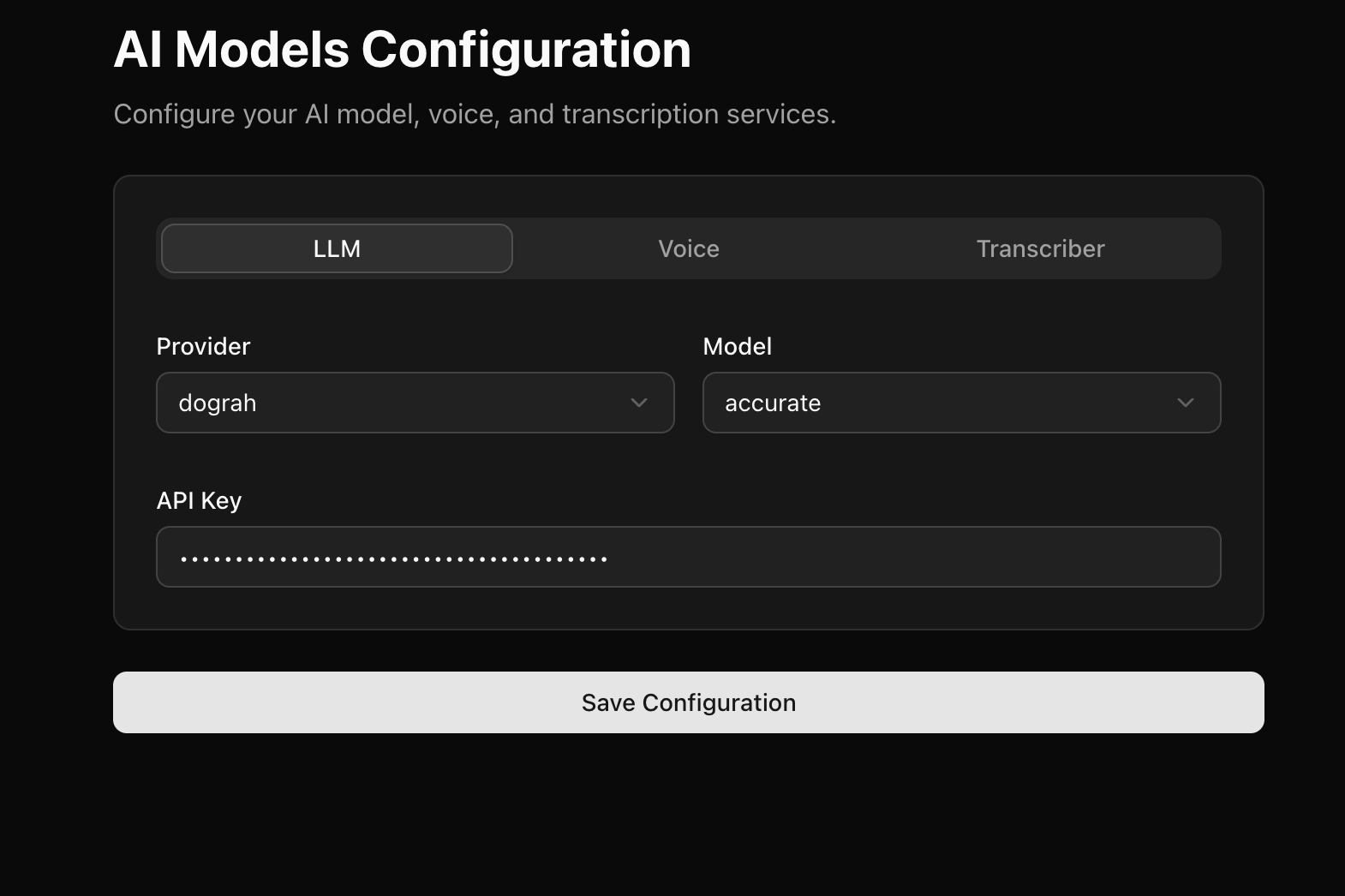
| Service | What it does |
|---|---|
| LLM | The language model that generates responses (e.g., OpenAI GPT-4.1, Anthropic Claude) |
| TTS (Voice) | The text-to-speech model that converts responses to spoken audio (e.g., ElevenLabs, Cartesia) |
| STT (Transcriber) | The speech-to-text model that transcribes user speech (e.g., Deepgram, AssemblyAI) |
| Realtime | A single speech-to-speech model that handles LLM, TTS, and STT in one (e.g., Gemini Live) |
Agent-Level Model Overrides
You can override the global model configuration for any individual agent. This is useful when different agents have different requirements — for example, a customer support agent might use a faster, cheaper LLM while a sales agent uses a more capable one.Configuring overrides
- Open the agent you want to customize.
- Go to Settings in the agent detail page.
- Select the Model Overrides tab.
- You will see tabs for each service: LLM, Voice (TTS), and Transcriber (STT).
- Toggle Override on for the service you want to change.
- Configure the provider, model, and other settings as needed.
- Save your changes.
Selective overrides
Each service can be toggled independently. When an override is off for a service, the agent inherits the global setting for that service. When an override is on, the agent uses the override setting instead.| LLM Override | TTS Override | STT Override | Result |
|---|---|---|---|
| Off | Off | Off | Agent uses global config for all services |
| On | Off | Off | Agent uses custom LLM, global TTS and STT |
| Off | On | Off | Agent uses global LLM and STT, custom TTS |
| On | On | On | Agent uses custom config for all services |
- Leave the LLM and Transcriber overrides off.
- Toggle the Voice override on.
- Select a different TTS provider or voice.
- The agent will use your custom voice while still using the global LLM and STT.
Realtime mode override
You can also switch an individual agent to use a Realtime provider (such as Gemini Live) even if the global configuration uses standard LLM + TTS + STT. Toggle the Realtime switch in the Model Overrides tab, then configure the realtime provider, model, and voice.When an agent uses a Realtime provider, it replaces the separate TTS and STT services with a single speech-to-speech model. An LLM is still required alongside the Realtime model — it’s used for out-of-band tasks like variable extraction and QA analysis, which the realtime service does not handle. Context compaction is not applicable in Realtime mode and is ignored if enabled.
Gemini 3.1 Live
Gemini 3.1 Live is Google’s realtime multimodal API that handles both LLM and voice in a single model. Instead of configuring separate LLM, TTS, and STT services, Gemini Live acts as an all-in-one realtime provider — it processes speech input, generates a response, and speaks it back, all over a single streaming connection. Dograh supports Gemini 3.1 Live as a Realtime provider. The default model isgemini-3.1-flash-live-preview.
Available Voices
You can choose from the following built-in voices:| Voice | Description |
|---|---|
| Puck | Default voice |
| Charon | — |
| Kore | — |
| Fenrir | — |
| Aoede | — |
Getting a Gemini API Key
To use Gemini 3.1 Live with Dograh, you need a Google Gemini API key. Follow these steps:- Go to Google AI Studio.
- Sign in with your Google account.
- Click on Get API Key in the left sidebar.
- Click Create API Key.
- Select an existing Google Cloud project or create a new one.
- Copy the generated API key and store it securely.
The Gemini API key is different from a Google Cloud service account key. You specifically need a Gemini API key from Google AI Studio for use with Dograh.
Configuring Gemini 3.1 Live in Dograh
- Go to Model Configurations in your Dograh dashboard (
https://app.dograh.com/model-configurationsfor hosted orhttp://localhost:3010/model-configurationsfor local). - Under the Realtime section, select
google_realtimeas the provider. - Paste your Gemini API key.
- Select the model (
gemini-3.1-flash-live-previewis available by default, or you can enter a model name manually). - Choose a voice from the dropdown (default is
Puck). - Select the language (currently
enis supported).
When using a Realtime provider like Gemini Live, you do not need to configure separate TTS and STT services — the realtime model handles speech in and out. However, you must still configure an LLM under the LLM tab: it powers variable extraction and QA analysis, which the realtime service does not perform.
Gemini Live on Vertex AI
If you want to run Gemini Live through your own Google Cloud project — for billing consolidation, VPC controls, regional residency, or enterprise IAM — Dograh also supports Gemini Live via Vertex AI as a separate provider (google_vertex_realtime). The default model is google/gemini-live-2.5-flash-native-audio.
Unlike Google AI Studio (which uses a single Gemini API key), Vertex AI authenticates with a service account belonging to your Google Cloud project.
Prerequisites
- A Google Cloud project with billing enabled.
-
The Vertex AI API enabled on that project:
-
A service account with the Vertex AI User role (
roles/aiplatform.user) on the project: - A JSON key for that service account (P12 keys are not supported).
Creating the service account key
- In the GCP Console, go to IAM & Admin → Service Accounts.
- Pick an existing service account (or create a new one).
- Open the Keys tab → Add Key → Create new key.
- Choose JSON as the key type and click Create.
- The key file will download to your computer — store it securely and treat it as a secret.
Always pick JSON, not P12. The Vertex AI client libraries used by Dograh only accept service-account JSON keys; P12 is a legacy format retained for older Google Workspace integrations.
Configuring Vertex AI Realtime in Dograh
- Go to Model Configurations in your Dograh dashboard.
- Enable the Realtime toggle.
-
Under the Realtime section, select
google_vertex_realtimeas the provider. -
Fill in the fields:
Field What to put in Model Vertex publisher/model id, e.g. google/gemini-live-2.5-flash-native-audioVoice One of the built-in voices (Puck, Charon, Kore, Fenrir, Aoede) Language BCP-47 code (e.g. en-US)Project Id The project_idvalue from your service-account JSONLocation GCP region where the model is available (e.g. us-east4)Credentials Paste the entire contents of the service-account JSON file API Key Leave blank — Vertex AI does not use API keys - Save the configuration.
Paste the whole JSON file into the Credentials field — including
private_key, client_email, and all other entries. Don’t try to extract individual fields. If Credentials is left blank, Dograh falls back to Application Default Credentials (ADC) from the host environment, which is useful when running Dograh on a GCP VM or GKE pod with an attached service account.IAM changes can take up to ~60 seconds to propagate. If you see
Permission 'aiplatform.endpoints.predict' denied, wait a minute and retry — or double-check that the role was granted to the same service account whose JSON you pasted.